

Overview
In Linux, package management commands differ across distributions. Linux installation packages play a crucial role in managing software on Linux systems, offering a structured and efficient way to install, update, and remove applications while ensuring all dependencies are met. With various package formats and modern approaches, Linux users have a robust framework for handling software management effectively. Running both apt and dnf requires superuser privileges, which you can only obtain with sudo or via root.
What are software packages and package managers?
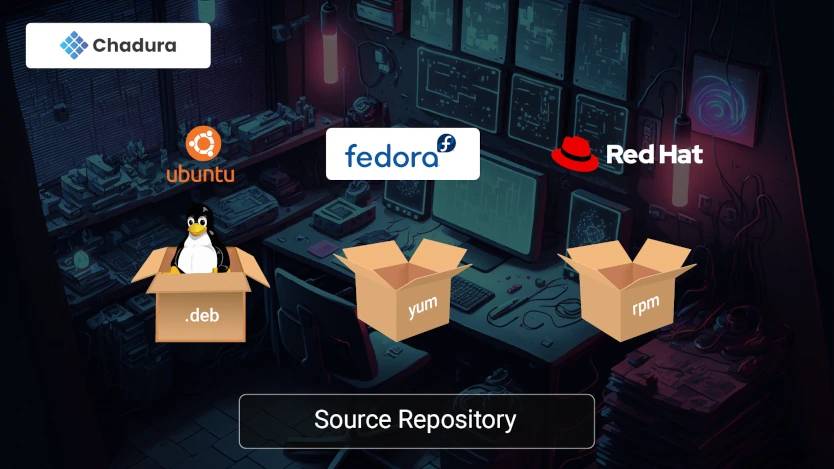
A software package is a collection of files and metadata that contains the information and instructions needed to install, run, and remove a software application or component. Depending on the distribution and the packaging system, software packages can have different formats, such as .deb, .rpm, .tar.gz, .snap, or .appimage. A package manager is a tool that simplifies the process of installing, updating, and removing software packages by resolving dependencies, checking compatibility, and verifying integrity. Some of the most popular package managers in Linux are apt, yum, dnf, pacman, snap, and flatpak.
How to use apt to install and remove .deb packages?
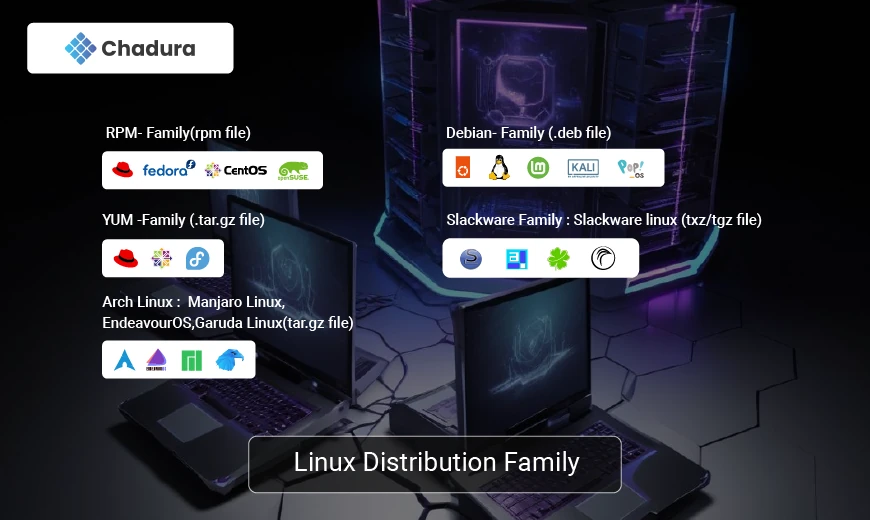
Apt is the package manager utilized by Debian-based distributions, such as Ubuntu, Mint, or Kali. It manages .deb packages are compressed archives containing the software's binary files and control files.
To use apt, you must open a terminal and execute the following commands:
which updates the list of available packages from the repositories;
sudo apt update which installs a package by name;
sudo apt install package_name which removes a package by name;
sudo apt remove package_name which installs a package from a local .deb file;
sudo apt install /path/to/file.deb which removes a package and its configuration files.
sudo apt purge package_name after run apt update, run [apt list --upgradable] to see upgradable packages, and after that run [apt upgrade] to upgrade all of them. It is interesting to note that "apt" serves as a wrapper for the Debian package manager known as "dpkg". Gaining insight into the historical background of package managers and other tools not only helps understand the inner workings of Linux, but also improves one's skills for effectively addressing any issues that may occasionally arise with these tools.
How to use yum or dnf to install and remove .rpm packages?
Yum and dnf are the package managers used by Red Hat-based distributions, such as Fedora, CentOS, or RHEL. These managers work with .rpm packages, which are compressed archives that contain the binary files and the metadata of the software.
To use yum or dnf, you need to open a terminal and use certain commands. For example, if you want to update the list of available packages from the repositories, then you should use
sudo yum update or sudo dnf update If you want to install a package by name, then type in When you install the package using
sudo apt install package_name and there are sub-packages/dependencies/permissions within the package prompting you to enter "Y/N" in the terminal to continue the installation.
You can add "-y" (Yes) or "-n" (No) flag at the end of the original command, "sudo apt install package_name -y" to automate that step.
At times when using
sudo apt install package_name

command, there is a lot of output on the terminal which you might not be interested in.

sudo yum install package_name
or
sudo dnf install package_name

To remove a package by name, you can use

sudo yum remove package_name
or
sudo dnf remove package_name If you want to install a package from a local .rpm file, type in
sudo yum localinstall /path/to/file.rpm or
sudo dnf localinstall /path/to/file.rpm Lastly, if you want to remove a package and its dependencies, use
sudo yum autoremove package_name or
sudo dnf autoremove package_name How to use Pacman to install and remove .tar.gz packages?
Pacman is the package manager used by Arch-based distributions, such as Manjaro, EndeavourOS, or Arch Linux. It works with .tar.gz packages, which are compressed archives containing the binary files and metadata of the software. To use Pacman, you need to open a terminal and type in certain commands. For instance, to update the list of available packages from the repositories, type in
sudo pacman -Syu To install a package by name, use
sudo pacman -S package_name To remove a package by name, use
sudo pacman -R package_name If you want to install a package from a local .tar.gz file, type in
sudo pacman -U /path/to/file.tar.gz To remove a package and its dependencies, use
sudo pacman -Rs package_name Pacman is an important tool for managing software on Arch-based distributions, and understanding how to use it is essential.
How to use snap to install and remove snap packages?
Snap is a universal package manager that works across different distributions and platforms with snap packages. These packages are compressed archives that contain the binary files and the isolation layer of the software, and are self-contained and sandboxed, making them have minimal impact on the system. To use snap, you need to open a terminal and use certain commands. For instance, to update the list of available packages from the snap store, you can use
sudo snap refresh To install a package by name,
sudo snap install package_name should be used, while
sudo snap remove package_name is necessary to remove a package by name. Additionally, to install a package from a local .snap file, you can use
sudo snap install /path/to/file.snap and snap list will list the installed snap packages.How to use flatpak to install and remove .flatpak packages?
Flatpak is a universal package manager that works across different distributions and platforms. It uses .flatpak packages, which are self-contained, compressed archives with the binary files and runtime environment of the software, as well as having minimal impact on the system and running independently of the system libraries.
To update the list of available packages from the flatpak repositories,
sudo flatpak update To install a package by name,
sudo flatpak install package_name To remove a package by name
sudo flatpak uninstall package_name sudo flatpak install /path/to/file.flatpak