

Deja Dup - Installation on Ubuntu
Part II | Part I
Overall Steps to Backup
1. Launch Deja Dup
- Locate and open the Deja Dup application.
2. Select Backup Destination
- Choose a backup destination: Local storage Network share Cloud storage (e.g., Google Drive, Nextcloud)
3. Configure Backup Settings
- Schedule: Set the frequency of backups (daily, weekly, monthly, etc.)
- Encryption: Enable encryption for added security.
- Compression: Choose a compression level to reduce backup size.
- Include/Exclude: Specify folders or files to include or exclude from backups.
4. Start Backup
- Click the "Back Up Now" button to initiate the backup process.
5. Monitor Backup Progress
- Observe the progress bar and status messages.
6. Verify Backup Completion
- Confirm that the backup process finished successfully.
GUI - Backup Process - Ubuntu
1.Install and Enable snapd
sudo apt update
sudo apt install snapd
2.Install deja-dup
sudo snap install deja-dup --classic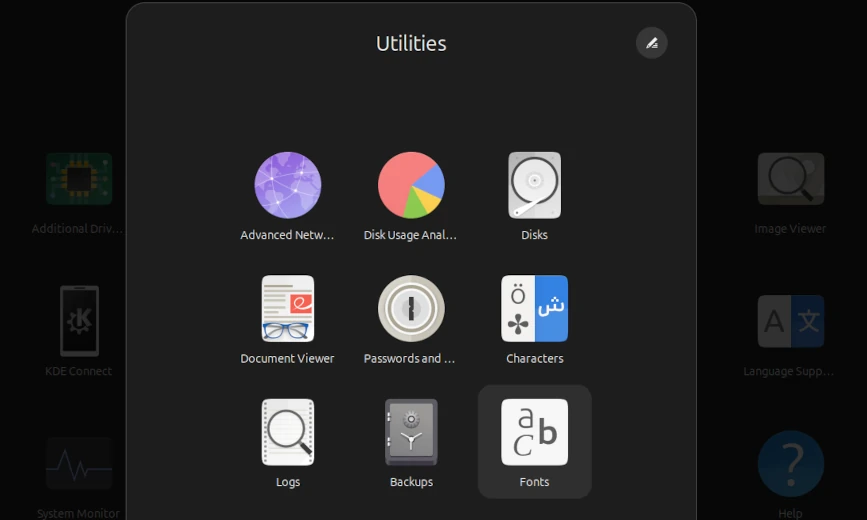
3.Setting up with your deja-dup
Before running your first backup, you’ll need to make a few decisions about what, exactly, you want included in your backup, as well as where you want it stored.
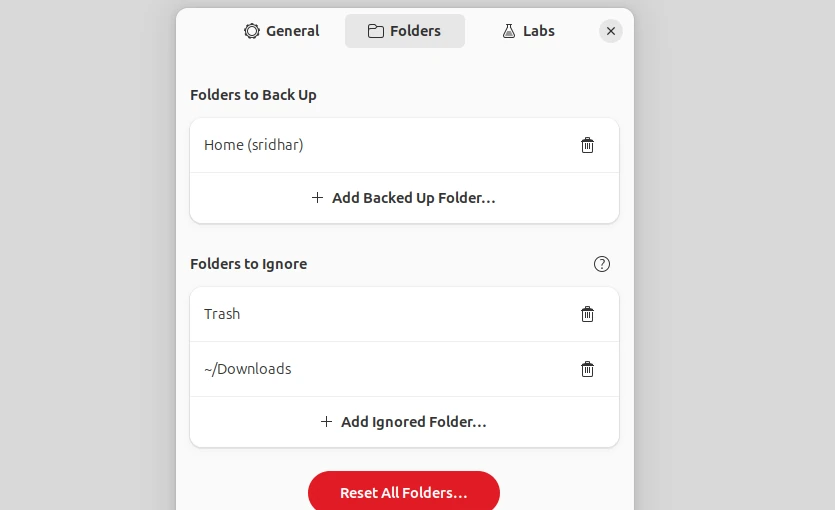
1. Folders to Back Up : By default, Deja Dup will back up your entire home directory. If you’re unsure of what you want to backup, you should leave this setting as it is. If you have files in other directories that you want to include, you can add them by clicking on the “+” button.
2. Folders to Ignore : The folders to ignore will be subfolders of your backup folders that you don’t want Deja Dup to back up. The default settings will not back up anything in the Trash or Downloads folders. These settings will work fine for most users but you might want to remove the Downloads folder from the list if you want to make sure downloaded files get backed up with everything else.
When you’ve made your selections, click the “Forward” button in the top right corner.
3.Setting Your Backup Location : Setting your backup location for Deja Dup is very straightforward. You’ll first select the location, which can be an online cloud service, a shared folder on your local network, or a local folder on a device connected directly to your computer (such as an external hard drive).
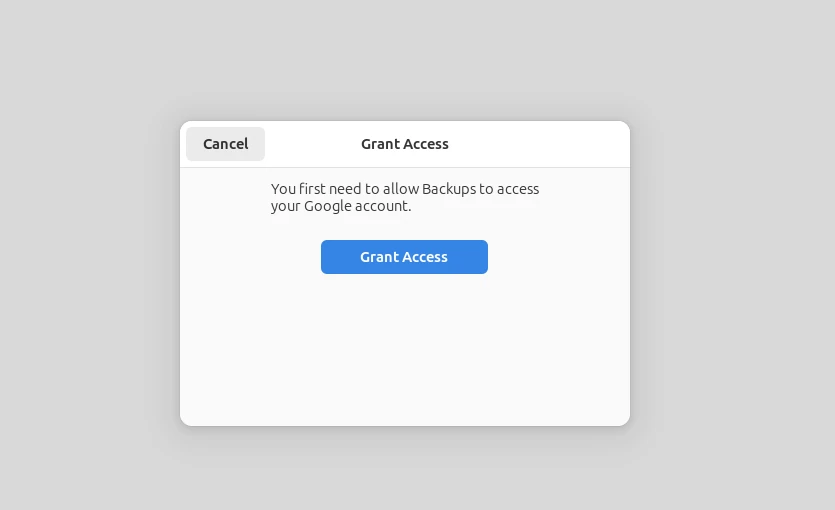
4.Give Grant Access for Cloud Storage (Google One Drive)
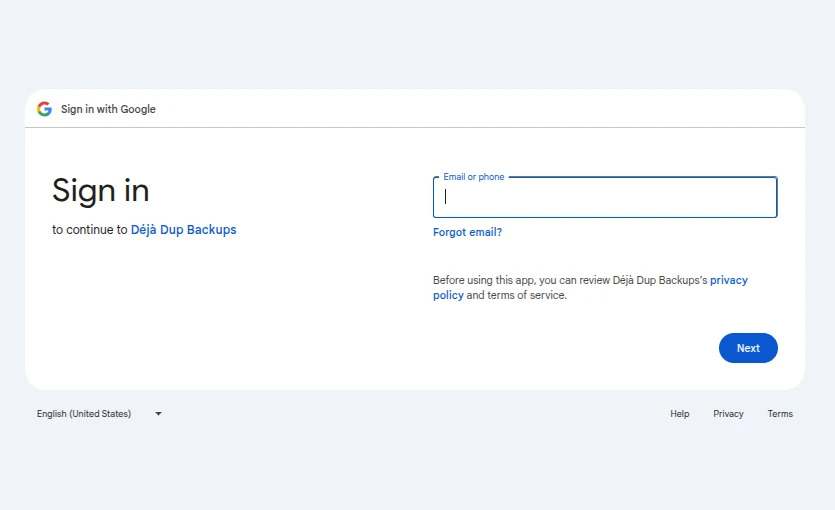
5.set Google Cloud - Onedrive with E-mail and Password
6.Click Backup Now Button
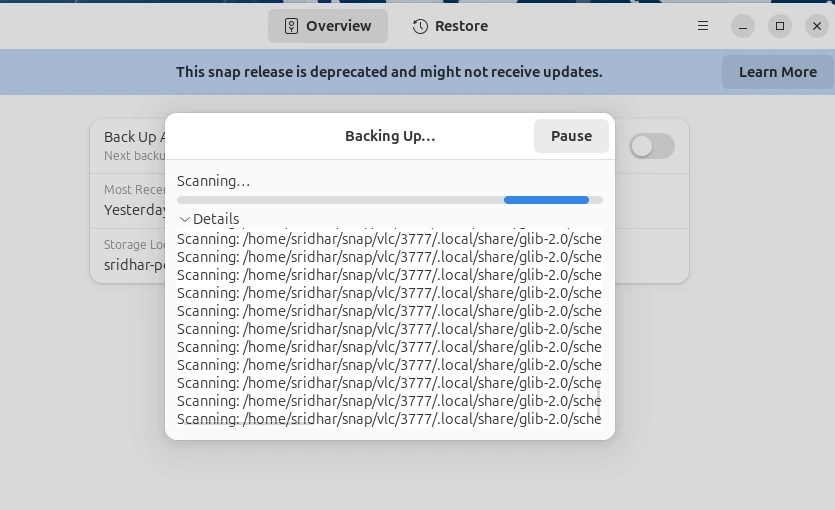
7.Check the Uploaded Files
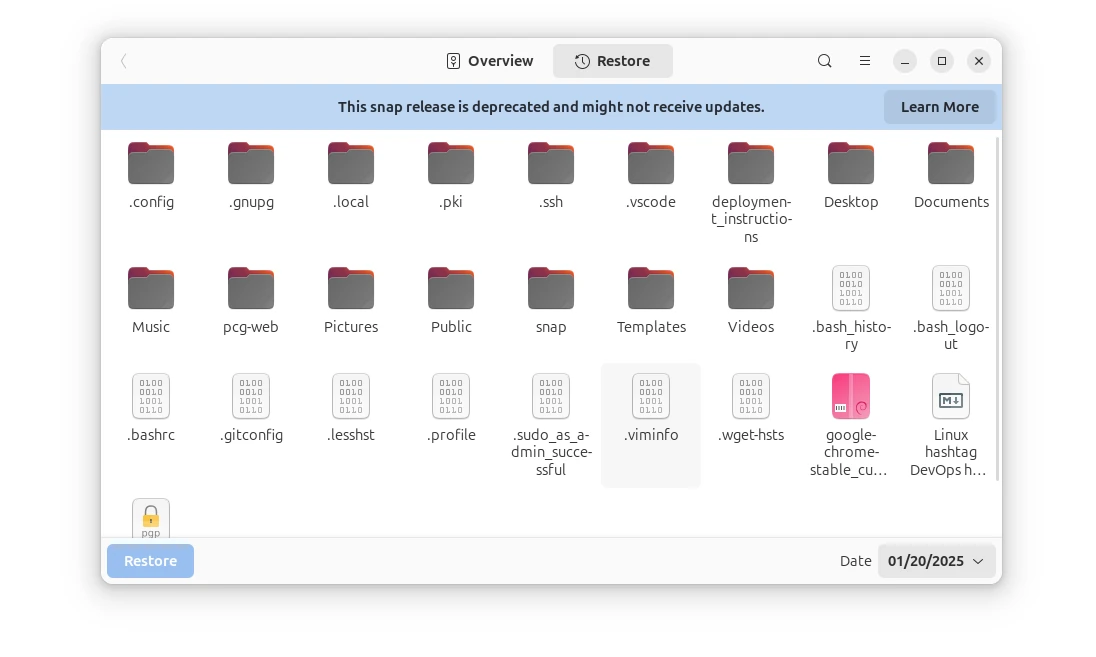
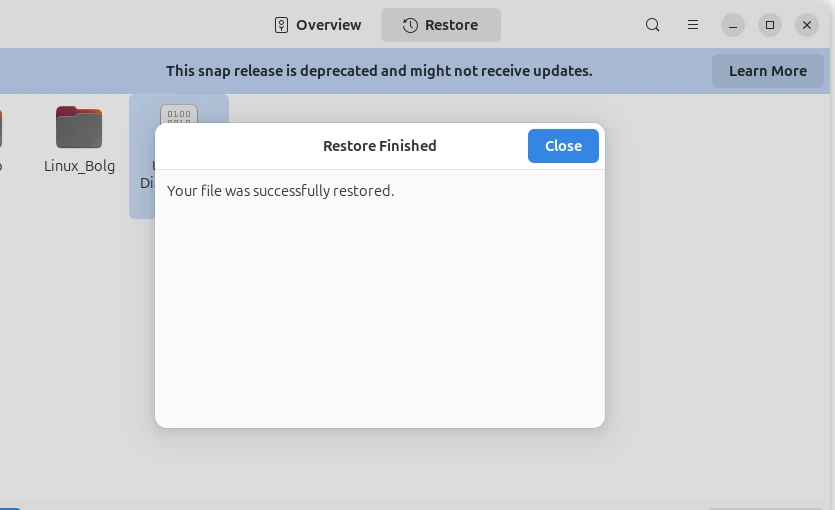
GUI - Restore from Backup Files
1.Select Your Files with restore location
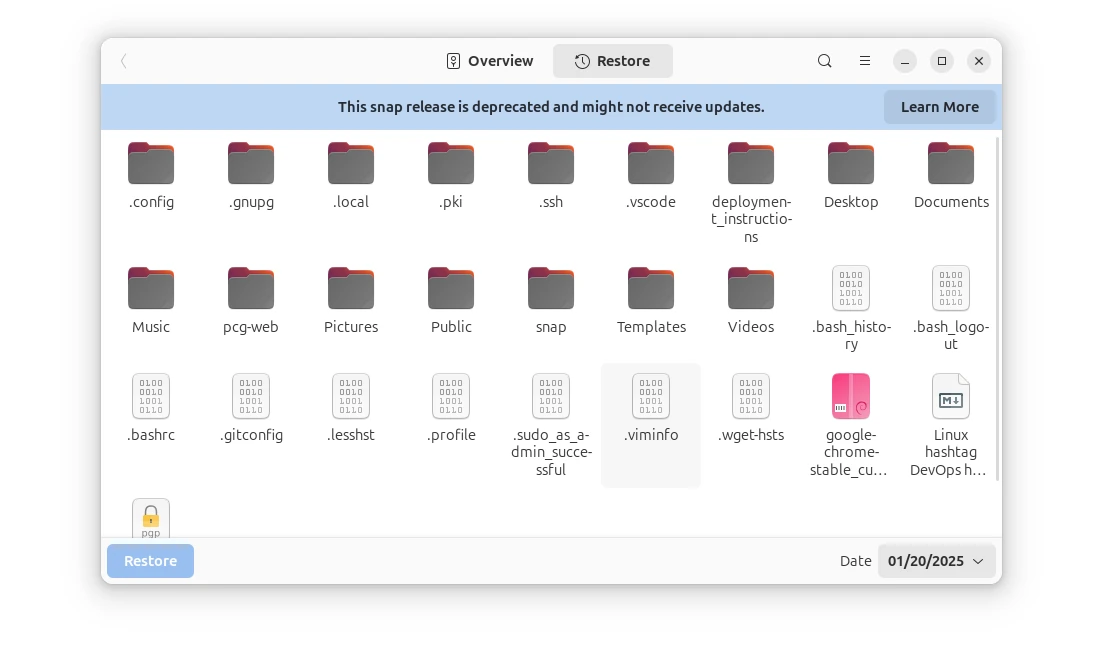
2.Click Restore