

SCP
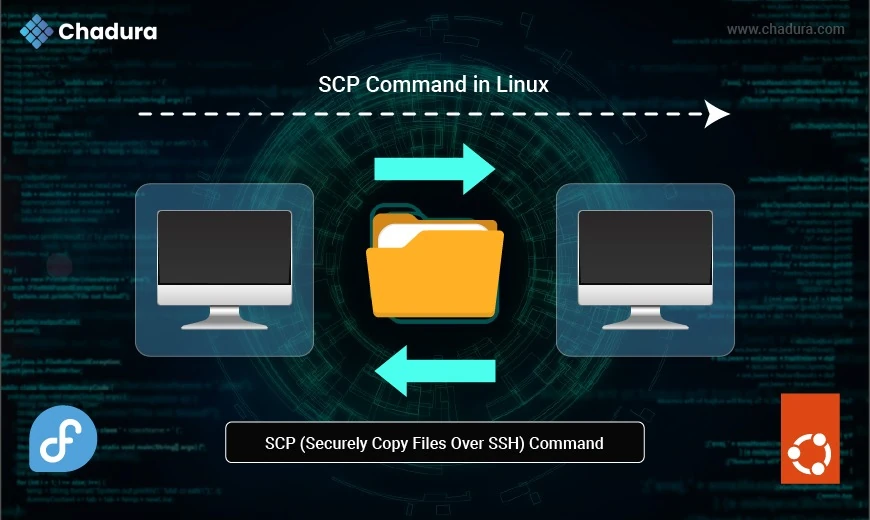
scp stands for Secure Copy Protocol, a command-line utility that lets you securely transfer files and directories between hosts over a network. It uses SSH (Secure Shell) for authentication and encryption, making it much safer than traditional tools like ftp.This means that all data transferred using scp is encrypted, making it a secure method for file transfer across networks. Unlike ftp or rsh, which transmit data and credentials in plain text, scp offers end-to-end encryption.
It’s simple, fast, and widely used by system administrators, developers, and DevOps professionals.
Key Features:
- Uses SSH protocol for security.
- Encrypts both files and credentials.
- Can transfer files between local and remote or two remote systems.
- Comes pre-installed in most Unix-like systems.
Why Use SCP?
- Secure Transfers - Encrypted with SSH.
- Supports Files and Directories - Use -r to copy folders.
- Remote to Local & Local to Remote - Versatile usage.
- Built-in on Most Linux Systems - No need to install anything extra.
Common Syntax
scp [options] <source> <destination>Common Examples
Copy a file from local to remote
scp myfile.txt user@remotehost:/path/to/destination/Copy a file from remote to local
scp user@remotehost:/path/to/file.txt /local/path/Copy a directory
scp -r /local/folder user@remote:/remote/folder/Copy using a custom SSH port
scp -P 2222 file.txt user@host:/path/SCP Working flow
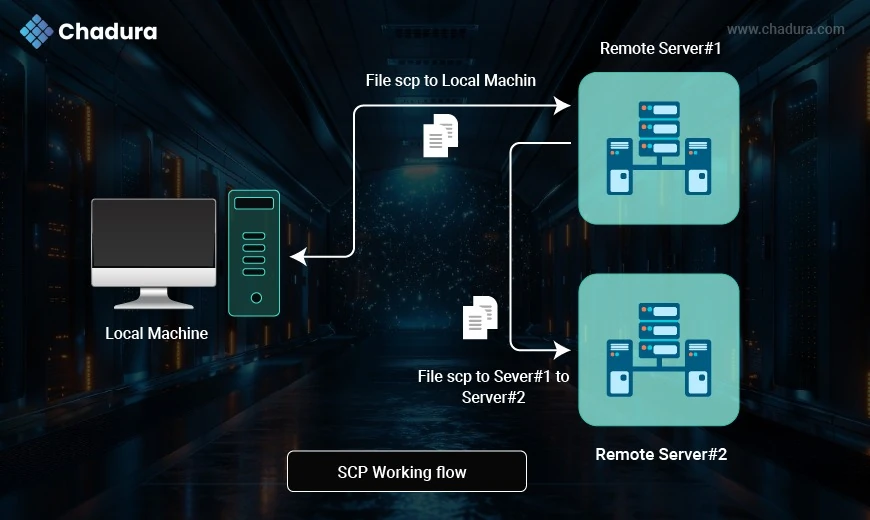
1. File SCP to Local Machine
From: Remote Server #1 | To: Local Machine (PC)
Direction: File is transferred from a remote server back to your own machine.
Explanation:
This scenario is useful when:
- You need to download backups or logs from a server.
- You’re working remotely and need to bring data back for local analysis or development.
Example
scp user@remote_server_1:/path/to/file.txt /local/destination/2. File SCP from Server #1 to Server #2
From: Remote Server #1 | To: Remote Server #2
Direction: File is transferred directly between two remote servers.
Explanation
This is a more advanced use of scp, where your local machine initiates the command, but the actual file never touches your device. Ideal for:
- Moving data between two servers in different data centers.
- Synchronizing files without manually downloading and re-uploading.
Example
scp user1@remote_server_1:/path/file.txt user2@remote_server_2:/path/Working Scenario
Useful SCP Options
-r - Recursively copy directories
-p - Specify SSH port
-i - Identity file (SSH key)
-c - Enable compression
-v - Verbose output for debugging
Use SSH Key with SCP
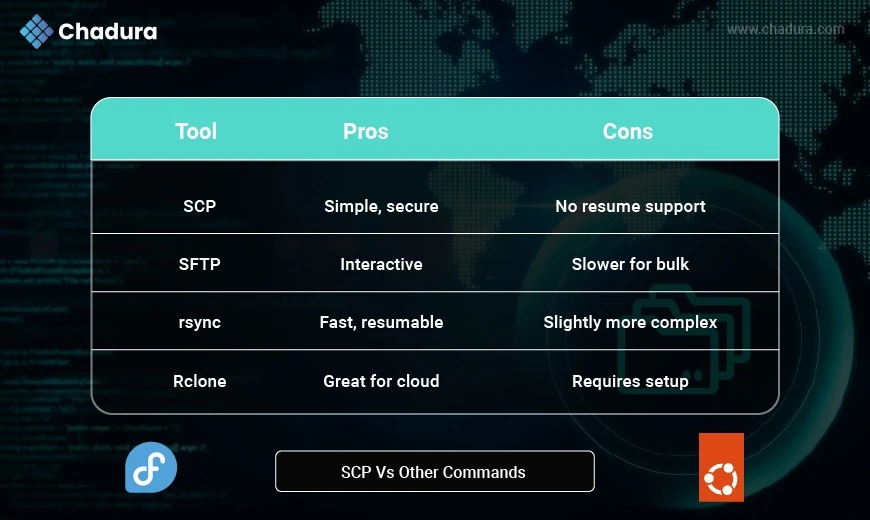
scp -i ~/.ssh/id_rsa file.txt user@remote:/path/SCP Vs Other Tools
SCP in Real-World Usage
- Deploying code to servers
- Taking secure backups
- Moving logs or reports
- Part of CI/CD pipelines
- Managing IoT devices or cloud VMs
SCP in Windows Environment
Using SCP on Windows:
Install Use pscp.exe from the command line:
pscp file.txt user@host:/path/Or install OpenSSH from Windows Features and use scp natively in PowerShell or CMD.
Limitations of SCP and Alternatives
SCP Limitations:
- No resumption of interrupted transfers
- No progress per file
- No syncing (unlike rsync)
Alternatives:
- rsync for incremental sync
- sftp for interactive sessions
- rclone for cloud environments
Graphical SCP Tools
GUI tools for beginners
- WinSCP (Windows)
- FileZilla (SCP/SFTP support)
- Cyberduck
- Nautilus (Linux) - "Connect to Server"
Conclusion
The scp command remains a cornerstone in the toolbox of any Linux user or system administrator. Its simplicity, security, and availability across Unix-like systems make it ideal for quick and secure file transfers. Whether you’re managing a single server or a complex infrastructure, mastering scp empowers you with efficient file transfer capabilities in just a few keystrokes.
If you’re looking for enhanced control, automation, or synchronization, consider integrating tools like rsync, sftp, or even cloud-native alternatives like rclone.