


Introduction
Artificial Intelligence (AI) has rapidly evolved from a concept in science fiction to a revolutionary technology reshaping industries worldwide. It enables machines to learn, reason, and perform tasks that traditionally required human intelligence. From automation to deep learning, AI is transforming the way we work, communicate, and solve problems. This article explores AI in detail, covering its history, types, applications, advantages, challenges, and future trends.
History of AI
The origins of AI trace back to ancient mythology and early philosophical inquiries into the nature of intelligence. However, AI as a field of study emerged in the 1950s. Key milestones include:
1950 - Alan Turing proposed the Turing Test, a method to determine machine intelligence.
1956 - The Dartmouth Conference officially marked the birth of AI as a discipline.
1980s - Machine learning and expert systems gained prominence.
2000s - Present - The rise of deep learning, big data, and computational power fueled AI advancements in various industries.
Types of AI
AI is broadly categorized into three types based on its capabilities:
- Narrow AI (Weak AI) : Designed for specific tasks, such as virtual assistants (Siri, Alexa), recommendation systems, and autonomous vehicles.
- General AI (Strong AI) : Hypothetical AI with human-like cognitive abilities, capable of reasoning and learning across multiple domains.
- Super AI : A theoretical stage where AI surpasses human intelligence, leading to potential existential concerns.
Key Technologies in AI
Several technologies power AI, including:
- Machine Learning (ML) : Algorithms that allow computers to learn from data.
- Deep Learning : Neural networks modeled after the human brain for advanced pattern recognition.
- Natural Language Processing (NLP) : Enables machines to understand and process human language (e.g., ChatGPT, Google Translate).
- Computer Vision : AI-driven image and video analysis.
- Robotics : AI-powered machines that perform complex physical tasks.
Applications of AI
AI is transforming various industries, including:
- Healthcare
- Finance
- Education
- E-commerce
- Cybersecurity
- Transportation and Logistics
- Entertainment and Media
Advantages of AI
- Automation : Reduces human effort by handling repetitive tasks efficiently.
- Accuracy : Minimizes errors, particularly in data-driven industries.
- Faster Decision-Making : AI processes vast amounts of data quickly.
- Cost Savings : Reduces operational costs and enhances productivity.
- Enhanced Customer Experience : AI chatbots provide instant support.
- 24/7 Availability : AI-powered systems function without breaks.
Challenges of AI
Despite its advantages, AI presents several challenges:
- Ethical Concerns : AI can be misused for surveillance, deepfake generation, and biased decision-making.
- Job Displacement : Automation may replace human jobs in various industries.
- Bias in AI Algorithms : AI models may inherit biases from training data.
- Security Risks : AI-powered cyberattacks pose threats to digital systems.
- Lack of Transparency : AI decision-making is often complex and difficult to interpret.
- Regulatory and Legal Issues : Governments struggle to regulate AI effectively.
Prerequisites:
- Platform : Ubuntu 24.04
- Network : Stable Internet Connection
- RAM : Minimum 8GB RAM (recommended 16 GB RAM and Multi GPU)
- HDD : 50 GB Free disk space
- Interface : CLI / GUI
Step 1 : Update Your System
sudo apt update && sudo apt upgrade -y #update your pc packages up to date sudo rebootc #reboot your systemStep 2 : Install Python and Git
sudo apt install python3 -ypython3 --versionStep 3: Install pip, the Python Package Manager
sudo apt install python3-pip -ypip --versionInstall Gitsudo apt install git -ygit --versionStep 4 : Install Ollama
curl -fsSL https://ollama.com/install.sh | shollama --versionStep 5 : Restart ollama service
sudo systemctl status ollama.serviceStep 6 : Download and Run the any AI Model (eg.DeepSeek Model)
ollama pull deepseek-r1:7b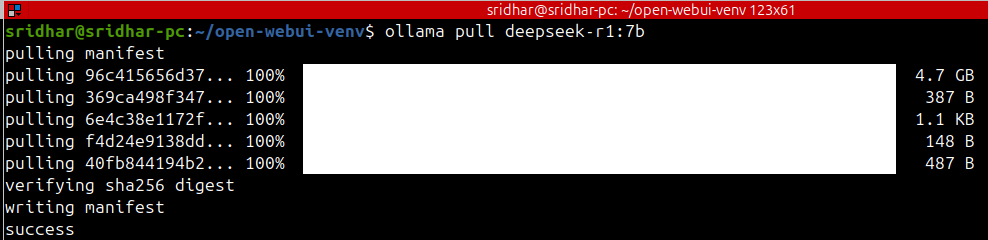
ollama pull deepseek-r1:14b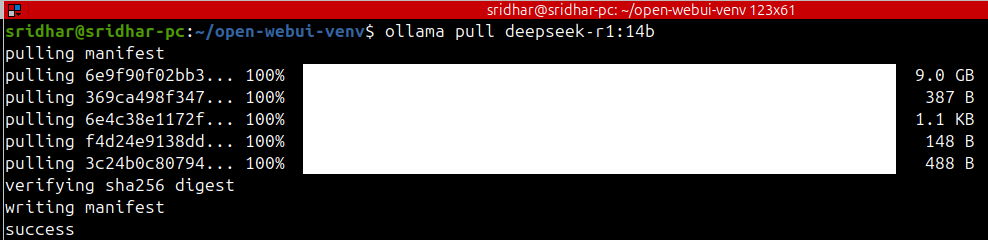
ollama list
Step 7 : Now start specific model like 7b
ollama run deepseek-r1:7b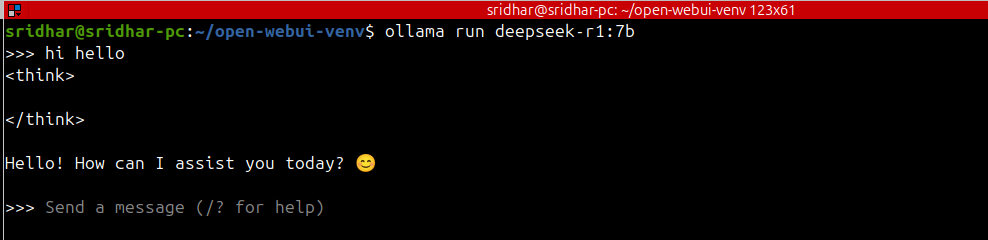
Graphical Mode Configuration
Step 1: Set Up the Web UI for AI (eg.DeepSeek)
sudo apt install python3-venv -ypython3 -m venv ~/prodsource ~/prod/bin/activateInstall Open WebUI pip install open-webuiStep 2 : Start the Open WebUI Server
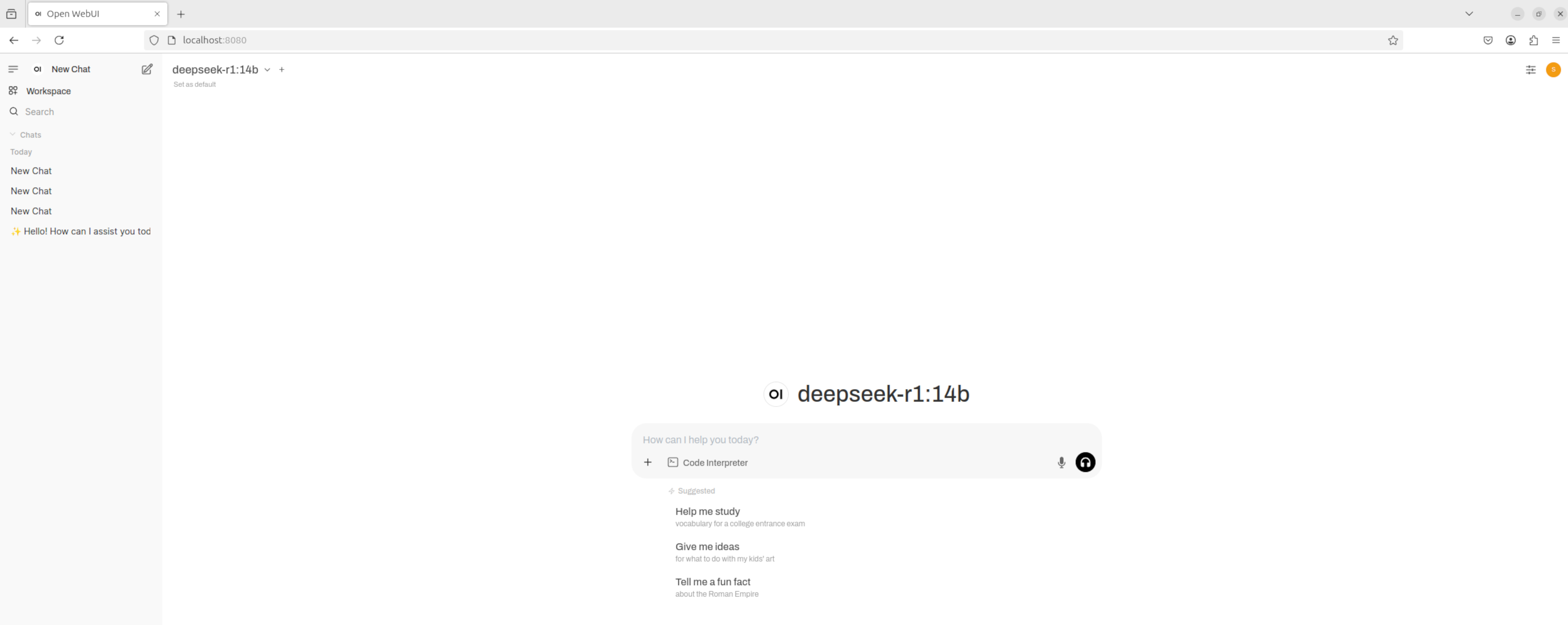
open-webui serveOpen your browser and navigate to http://localhost:8080 to access the interface.
Step 3 : To have Open WebUI start automatically on system boot, create a systemd service file.
sudo vi /etc/systemd/system/open-webui.serviceStep 4 : Add the Following Content:
[Unit]

Description=Open WebUI Service

After=network.target

[Service]

User= ubuntuuser

WorkingDirectory=/home/ubuntuuser/open-webui-venv

ExecStart=/home/ubuntuuser/prod/bin/open-webui serve

Restart=always

Environment="PATH=/home/ubuntuuser/prod/bin:/usr/local/sbin:/usr/local/bin:/usr/sbin:/usr/bin:/sbin:/bin"

[Install]

WantedBy=multi-user.target
Replace ubuntuuser with your actual username
Step 5 : Reload systemd & enable the service:
sudo systemctl daemon-reloadsudo systemctl enable open-webui.servicesudo systemctl start open-webui.serviceStep 6 : Check the status of the service with
sudo systemctl status open-webui.serviceStep 7: Open any Browser like Mozila-firefox ,Google Chrome .. hit this URL
http://<Your-Ubuntu-System-IPAddress>:8080